Player Details Screen
From Players → Manage, click the gear icon and select Manage to open a device’s detail view.
Screen structure
Top bar (actions menu)
At the top of the screen you’ll find the main action buttons for operating on the player:

- Settings
- Edit → edit the player information.
- Copy from → copy the configuration from another player.
- Scheduling → manage the scheduling of contents.
- Layout → edit the layout associated with the player.
- Interactivity → configure interactive events (GPIO, UDP, HTTP, etc.).
- Device
- Restart device → remotely reboot the player.
- Update device → schedule the software update on the player.
- Preview → show a remote preview of the screen connected to the player.
- Delete → remove the player from the platform.
Central area
Left column
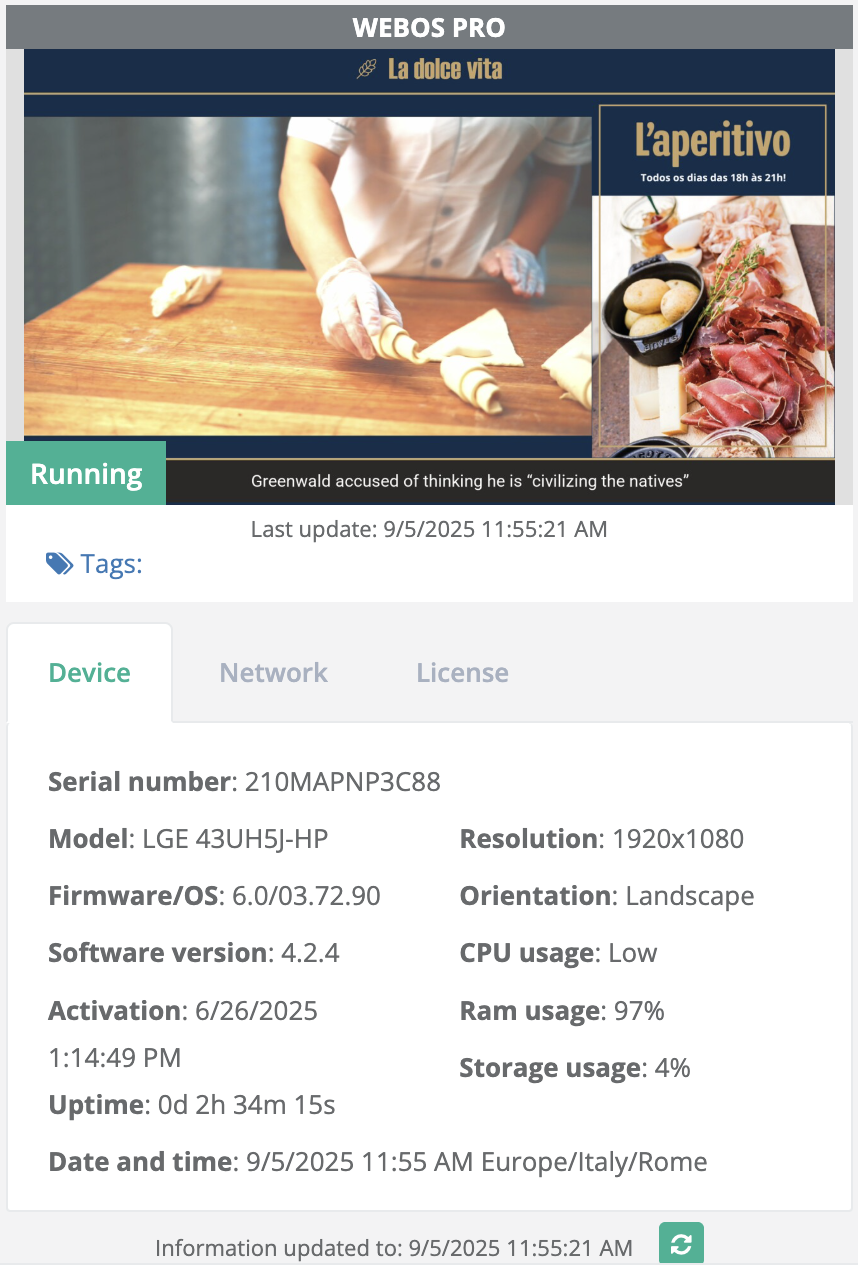
- Screenshot → up-to-date preview of the player with capture time.
- Tags → list of associated tags.
- Info tabs:
- Device → technical data such as serial number, model, firmware/OS, software version, resolution, CPU usage, memory, free space.
- Network → network parameters (IP address, gateway, DNS, etc.).
- License → license details (ID, status, type, start and end date).
Right column
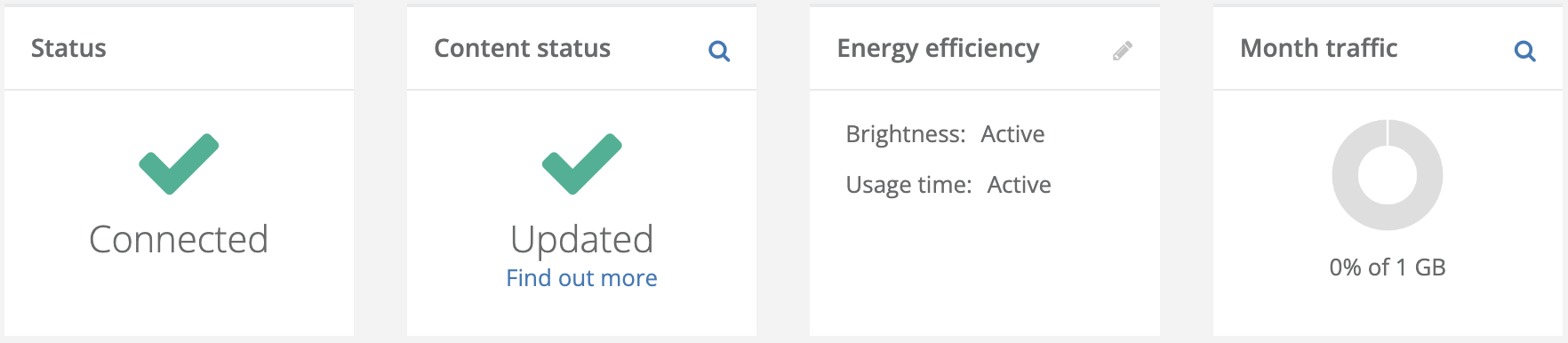
- Status → shows whether the player is connected and the last detected connection time.
- Content status → shows whether the contents are synchronized with the platform. Click the magnifying glass icon for more details.
- Energy efficiency → available only for supported devices. Shows the energy-related features enabled on the selected player.
- Monthly traffic → chart with bandwidth consumption against the planned threshold (e.g., 0% of 1 GB). Click the magnifying glass icon for more details.
Channel view
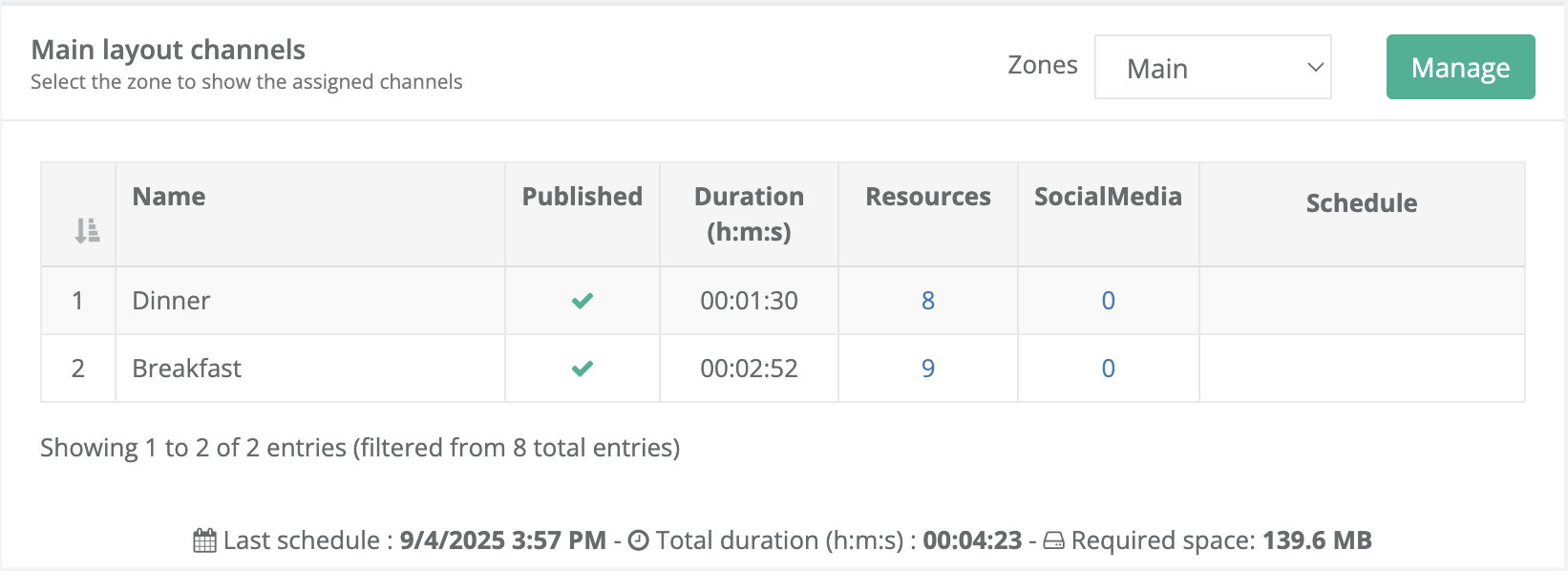
At the bottom you’ll find the Main layout channels table, which lets you:
- see the channels assigned to each zone (Main, Sidebar, etc.);
- view information such as Name, Publication, Total duration, number of Assets, included SocialMedia, and scheduling;
- use the Manage button to edit the channels of the selected zone.
Below the table, a summary shows:
- Last scheduling: date and time of the latest schedule sent to the player
- Total duration (h:m:s): overall duration of the scheduled contents
- Required space: total space needed on the device
Channel Management
Click Manage in the channel view section to access the screen dedicated to managing channels for each layout zone.
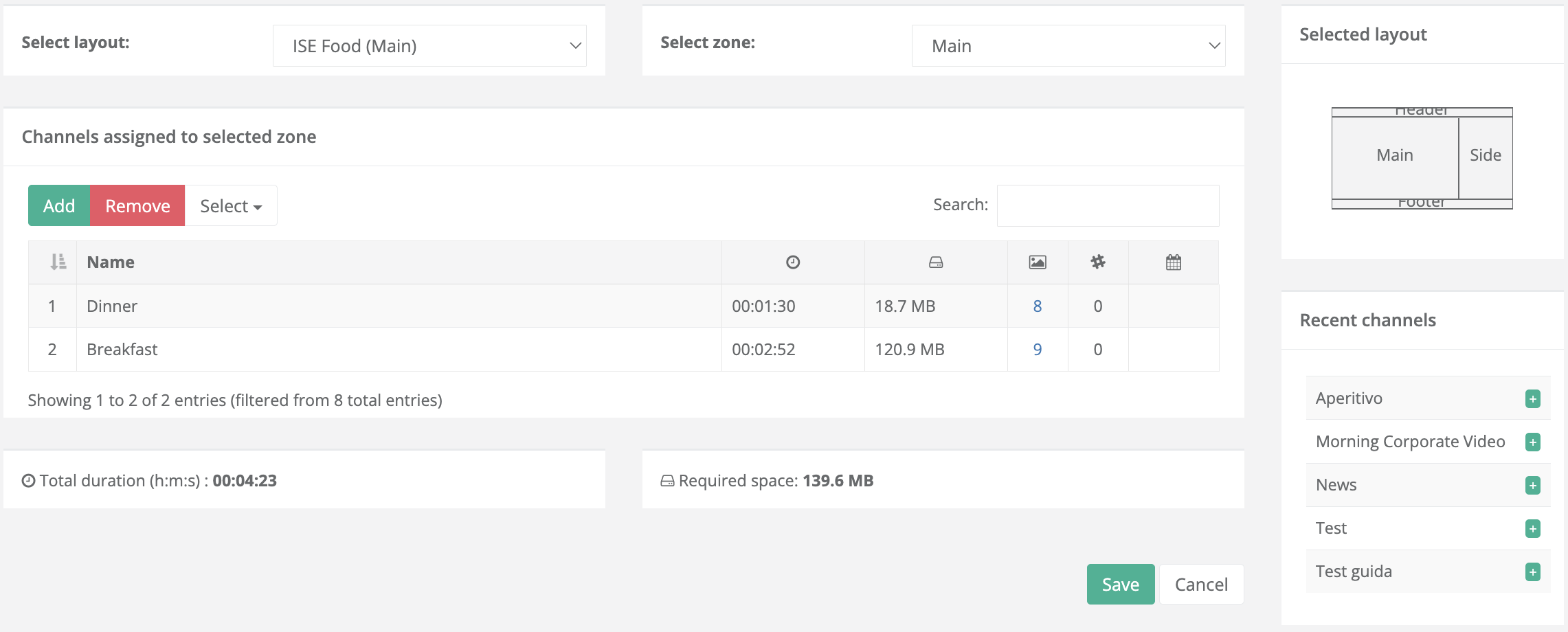
In this section you can:
- Select the layout and the zone to work on.
- Add or remove channels with the Add and Remove buttons.
- Check the table of channels assigned to the zone, showing:
- Channel Name
- Total duration of the channel contents
- Required space on the device
- Number of media assets and social contents included
- Recent channels → quick list on the right to assign channels you recently used.
- Selected layout → graphical representation of the layout with available zones.
- Final summary → at the bottom you’ll see the Total duration and Required space for the selected zone.
Questions?
For additional support, open a ticket.Last updated: October 2026