Player Overview
The screen accessible from Players → Manage in the WallSign platform gives you a complete overview of the devices in your network, with all the key information for monitoring and accessing their management.
Screen Structure
At the center of the screen, each player is displayed as a card including the following elements:
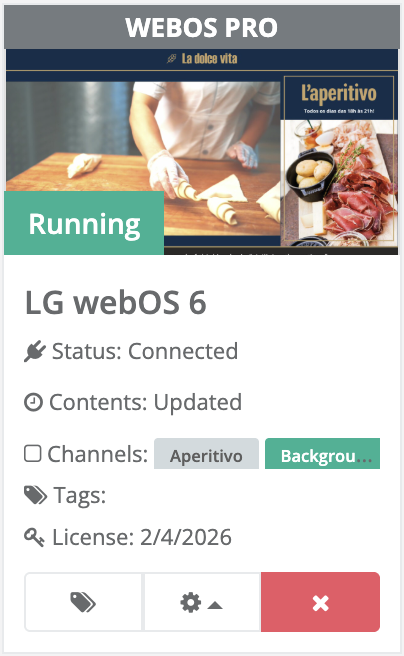
- Player type → e.g., Android, BrightSign, WebOS, etc.
- Screenshot → remote preview of the content currently being played (see remote preview).
- Player name → the name assigned to the device (e.g., Store Milan).
- Status → shows whether the player is Connected or Not connected.
- Content → shows the content synchronization status: lets you know if the files on the device are up to date with the platform.
- Channels → list of channels associated with the player.
- Tags → tags applied to the player to make it easier to search and organize.
- License → validity of the license associated with the device.
Below the card, there are three action buttons:
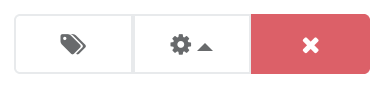
- Tag icon → allows you to add or remove tags.
- Gear icon → provides access to player info, preview, and the detail screen (the “Manage” section).
- X icon → allows you to delete the player.
Search and Filter Tools
In the top-right corner, there is a search field that allows you to quickly filter players:
- by name
- by tag
This makes it easier to find specific devices in large installations with many players.
Table View
In addition to the card layout, the same screen can also be displayed in table view, useful for consulting a large number of devices in a more compact format.
Questions?
For additional support, open a ticket.Last updated: October 2026